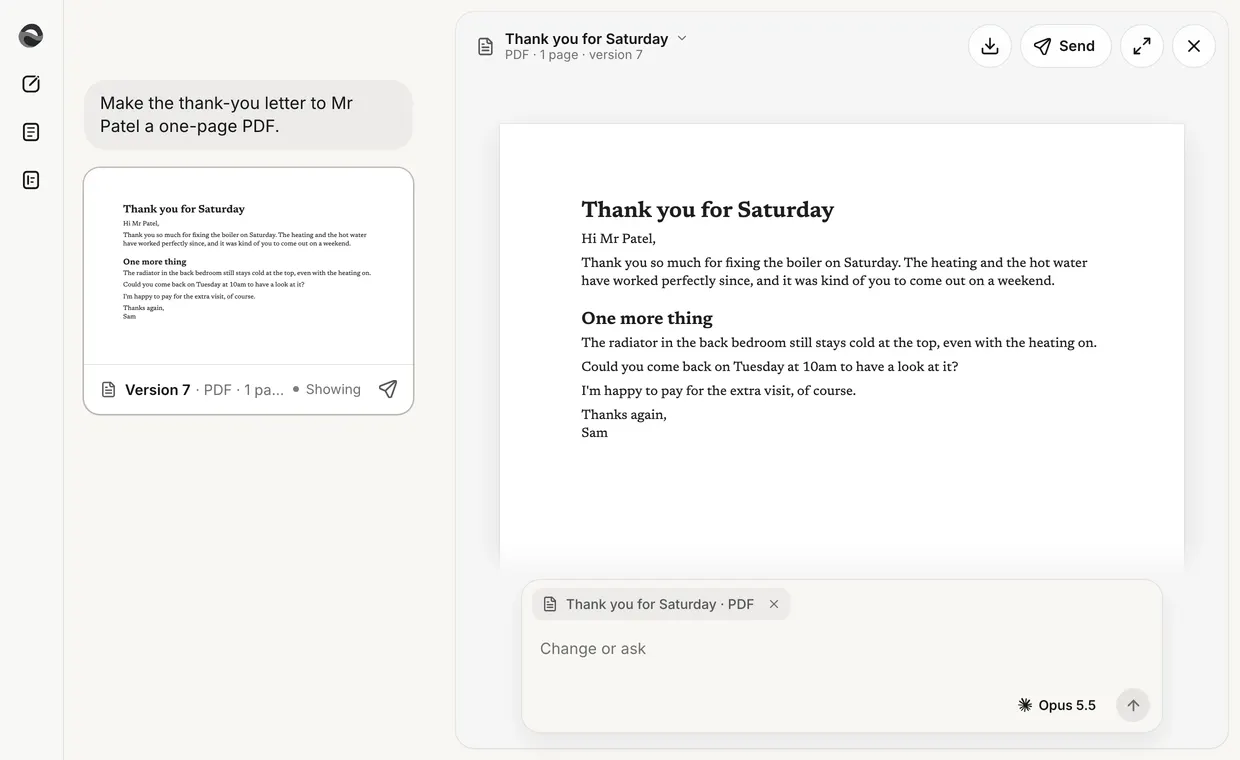
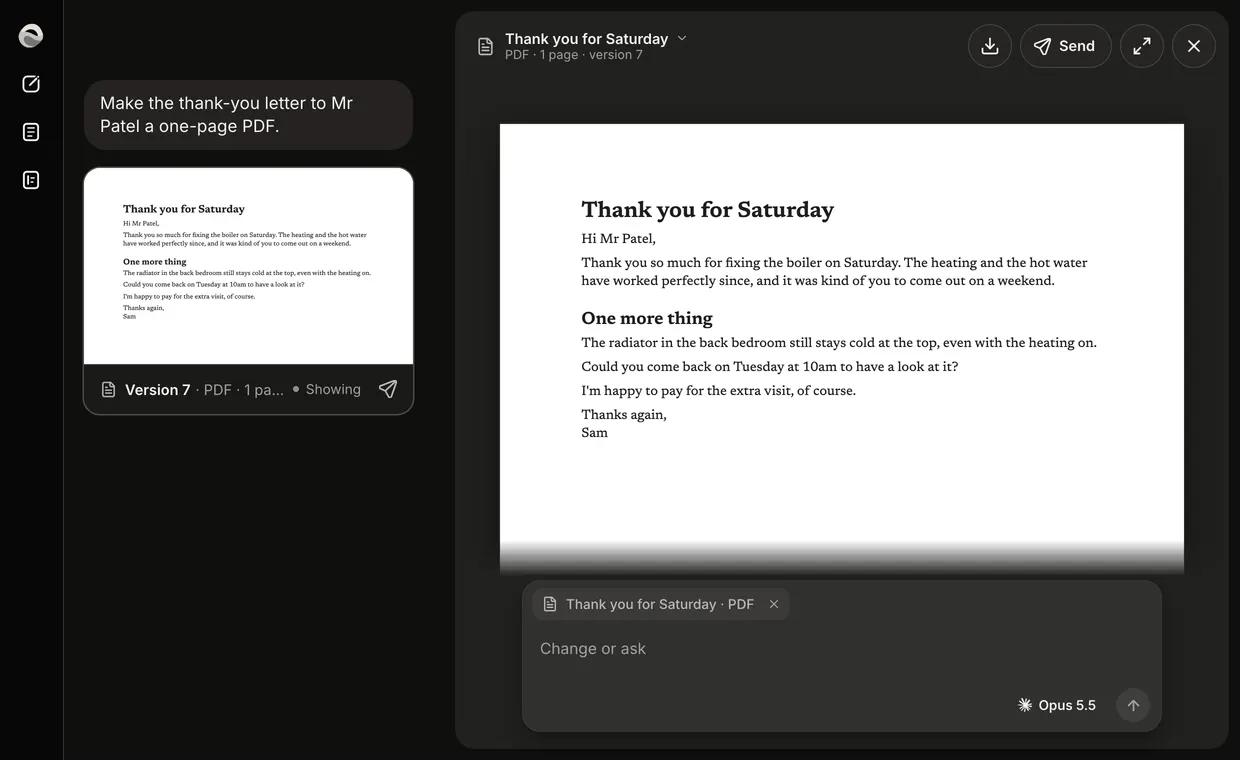
A PDF beside the chat
A PDF opens beside the chat, in the paper's place, never in a new tab.
- Where it comes from
- A PDF Revise makes for a CV or a letter lands in the chat as a card showing the top of its first page. Press the page to open it beside the chat; the card reads Showing. You can also make one from a draft: the paper's Send, then Download, then PDF. A PDF is kept in Sources, in the sidebar, and opens from there with its own chat.
- The head
- Over the page: the PDF's title, which opens its menu (Versions, Rename, Download, Open in a new tab, Delete), its pages under it, then Download, Send, ⤢ and ×.
Change it
Select a line
Select words on the page as you would anywhere. They go to the bar as a row: the section, then the words. The field reads Change or ask.Say what should change
Send it. A question is answered in the chat and the page stays as it is. A change makes a new version.The new version swaps in
The head says Making version 8 while Revise works. The new version takes the page's place where you were, with a bar in the margin by each changed line. The head then says what changed, with Undo on the same line.
Versions
- Every version
- Versions, in the title's menu, lists them newest first, each with what changed. An older one opens with Newest and Restore in the head, and a change you ask for there goes on the newest version.
- Your own PDF
- A PDF you add in Sources stays as it is. Ask about it, or press Make a copy for a copy Revise can change.
- Plans
- Changing a PDF comes with Pro. On Free the bar's row says With Pro, and you can still ask about the PDF.