How Revise appears
- The mark
One object beside your words
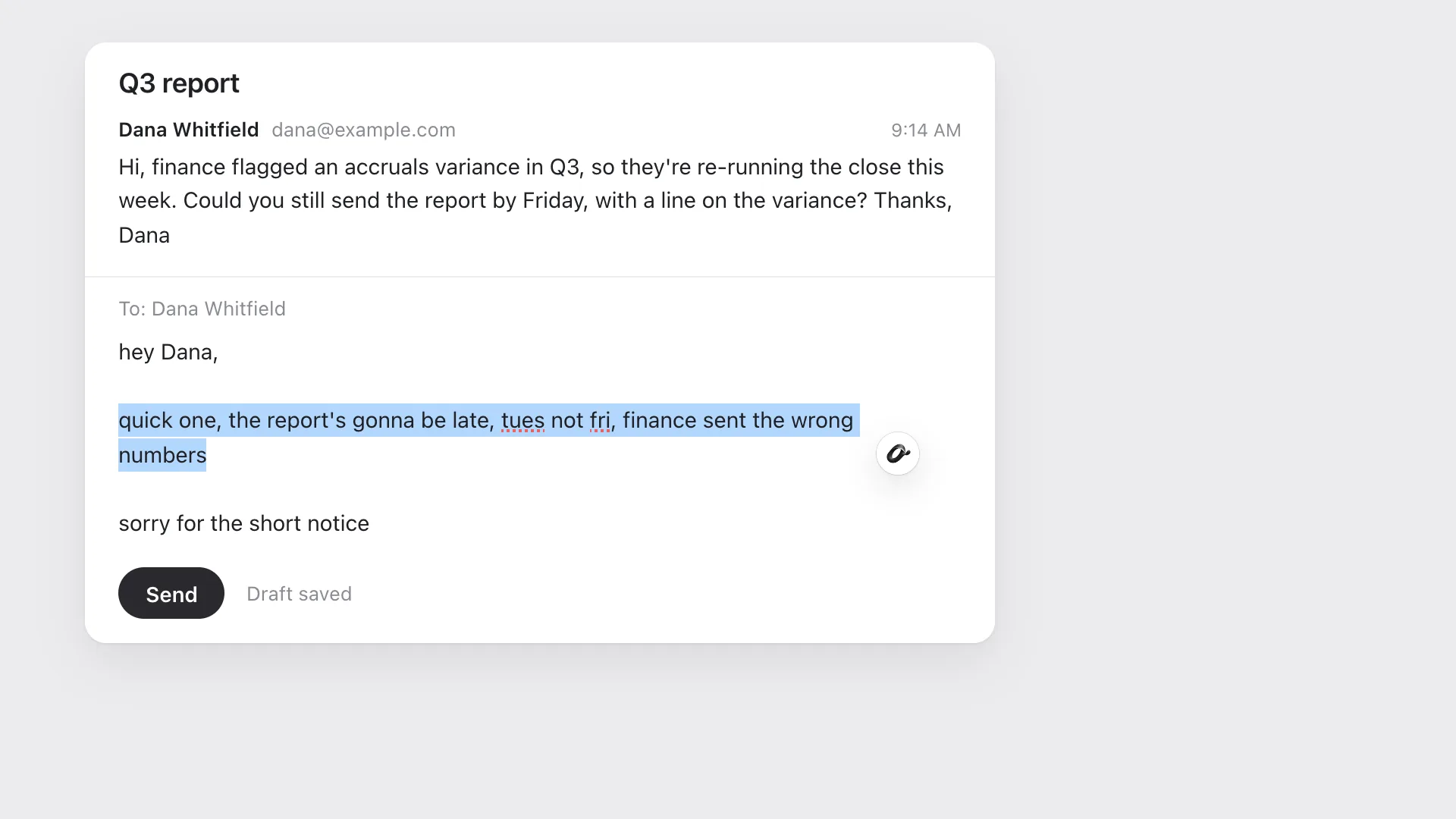
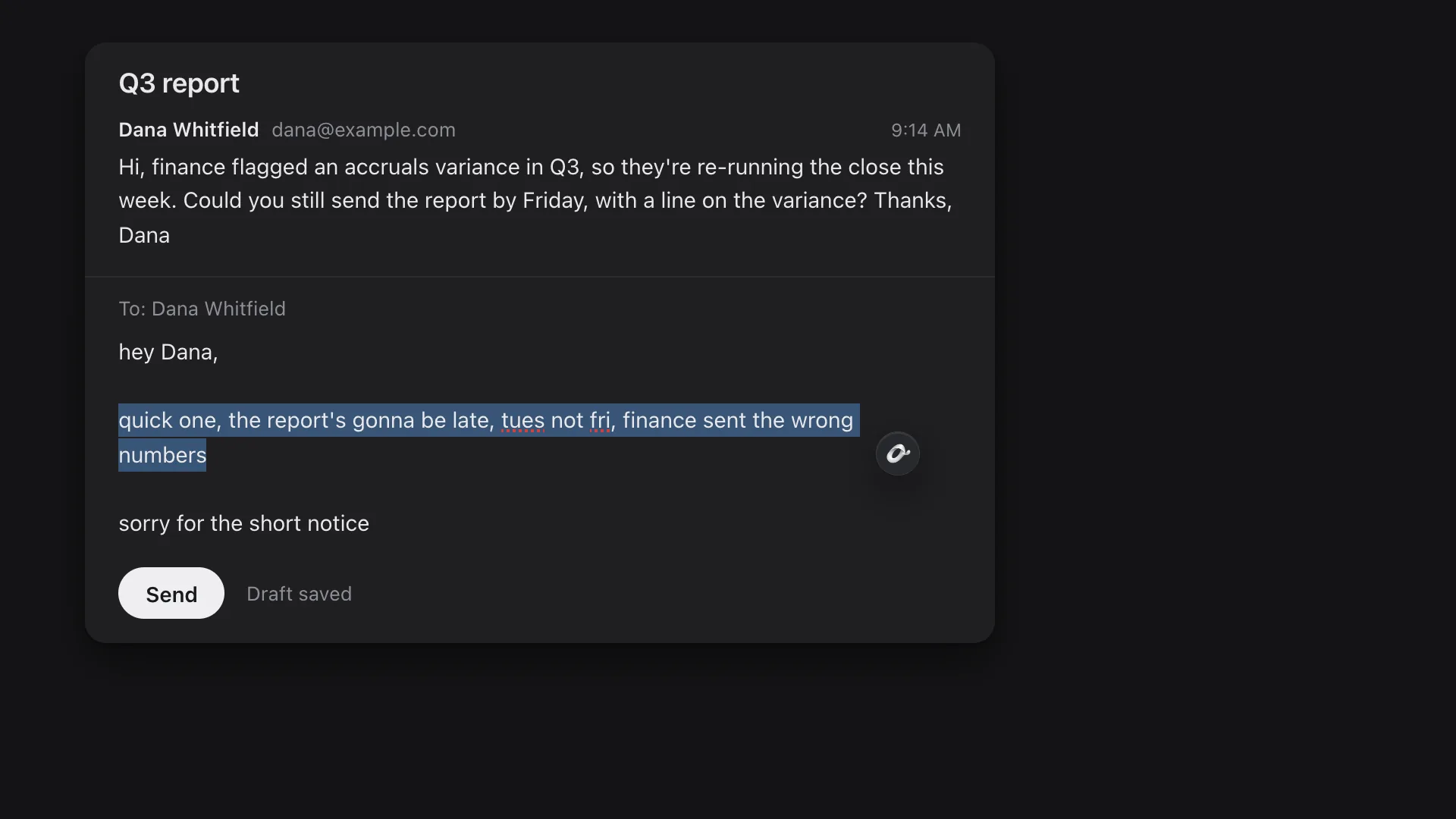
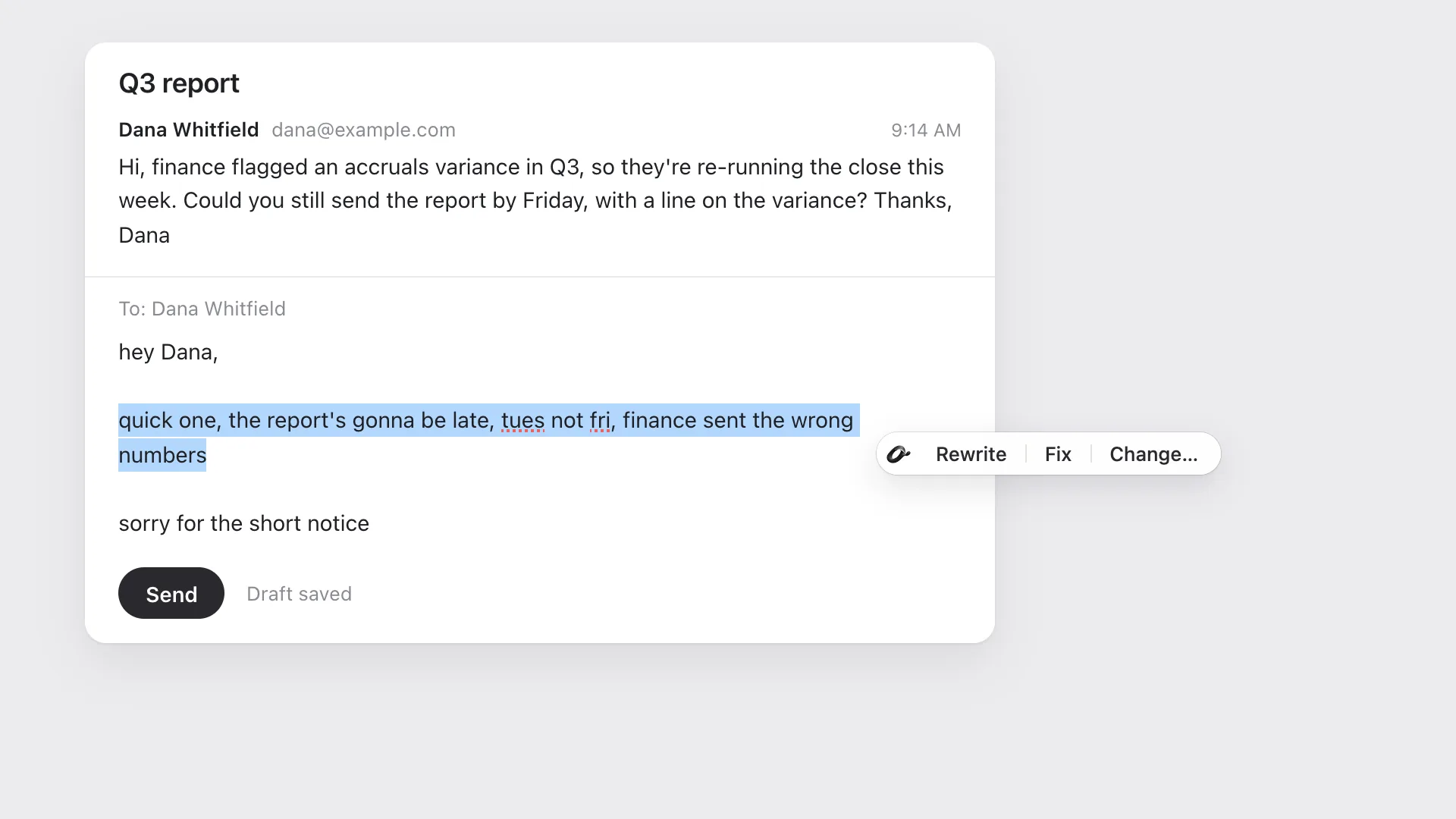
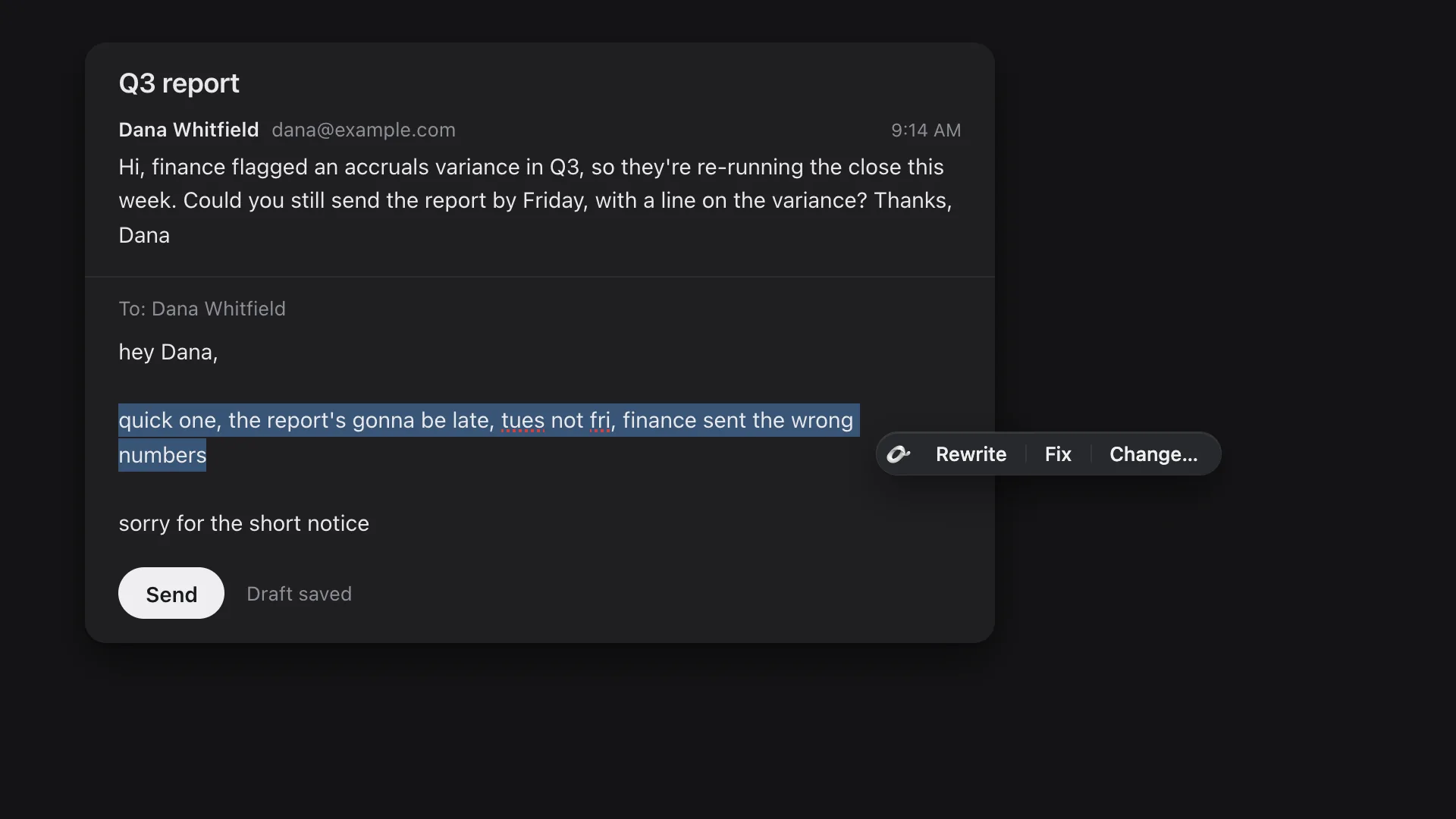
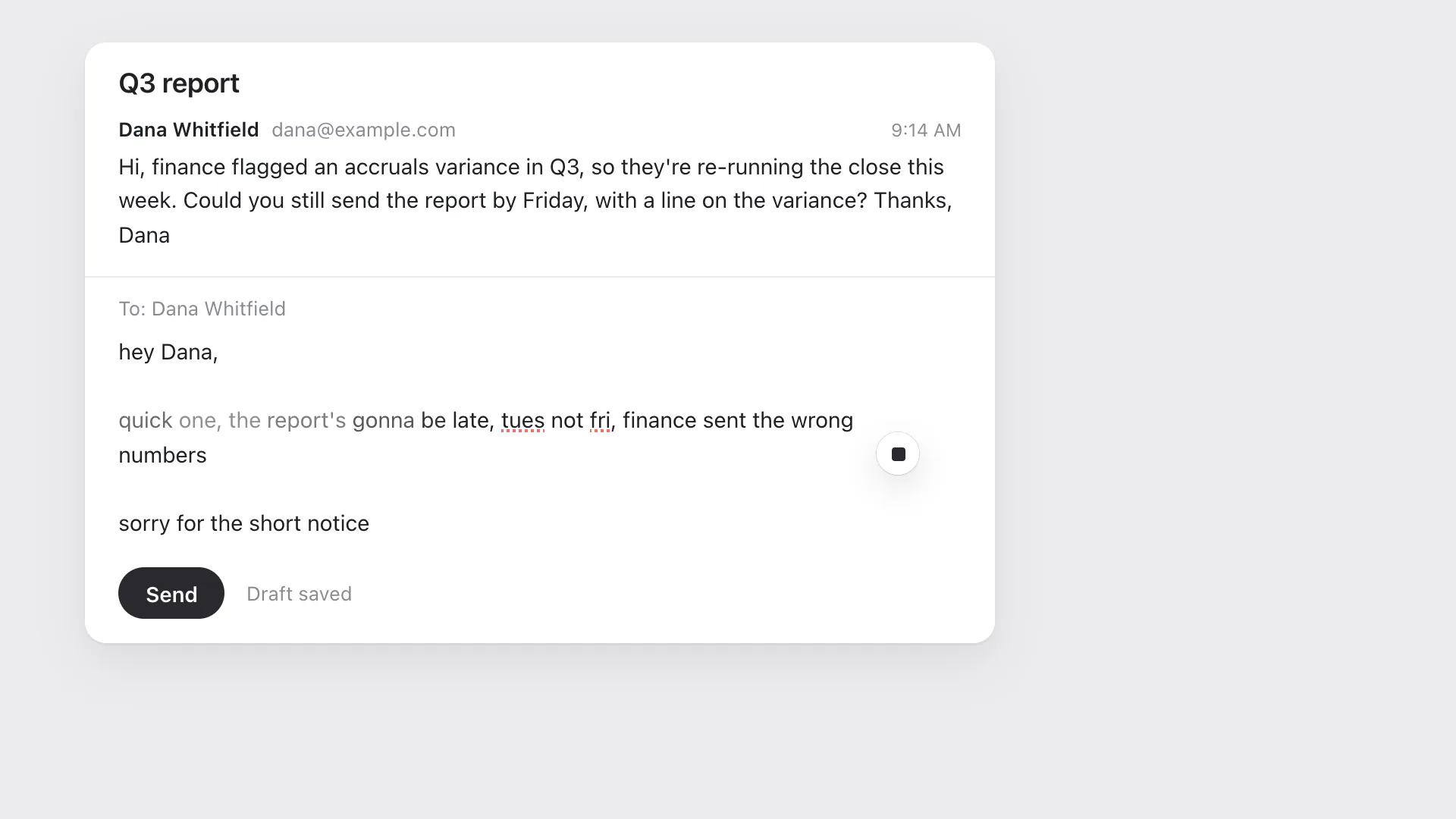
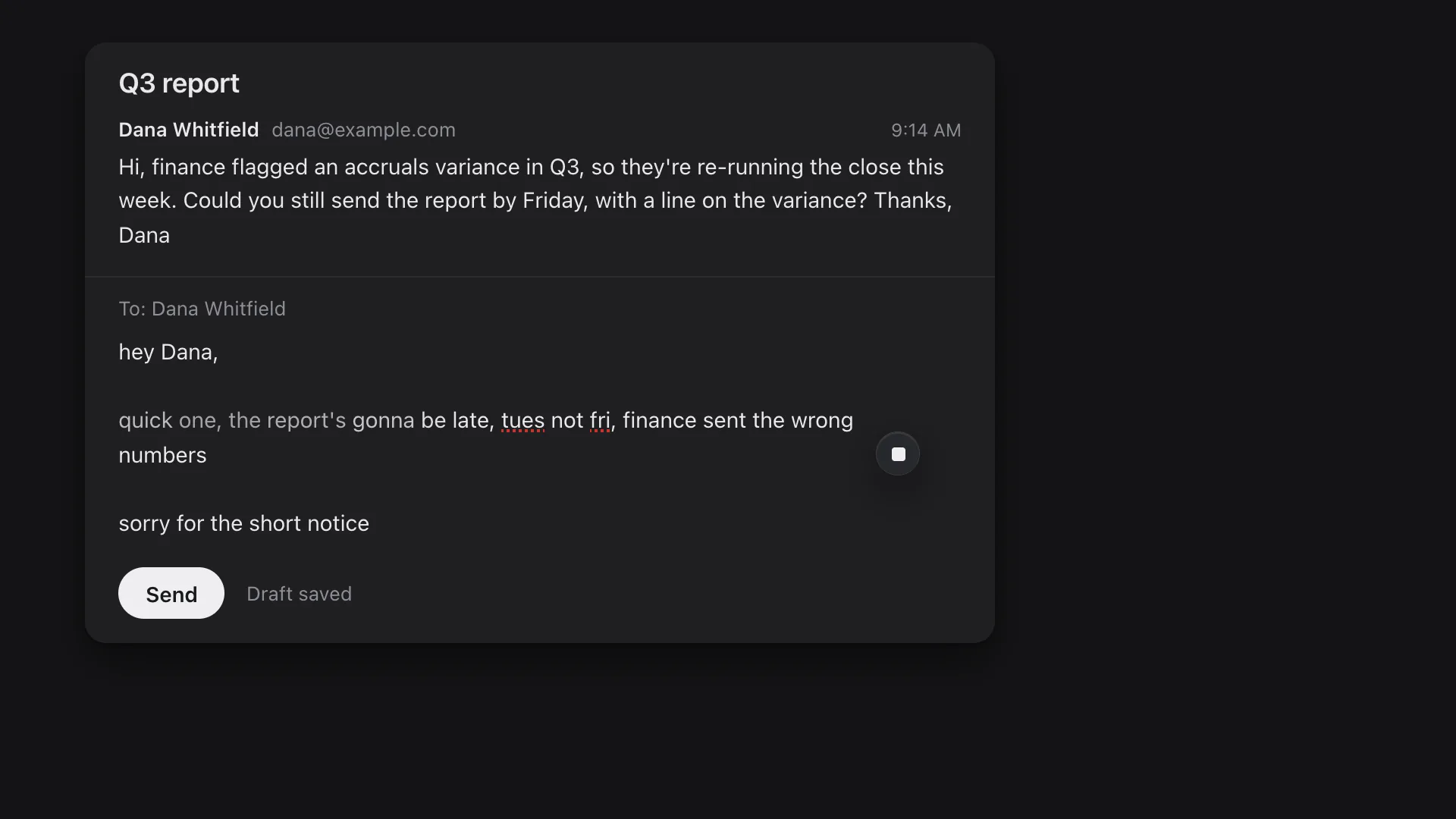
The Revise mark is a small round seat with the Revise ribbon. It appears when you click into a box you write in, steps aside while you type, and comes back when you pause. Select words and it stands beside them, never on top of them. Point at it and it opens into what it can do there.- Your words
Rewrite, Fix, Change…
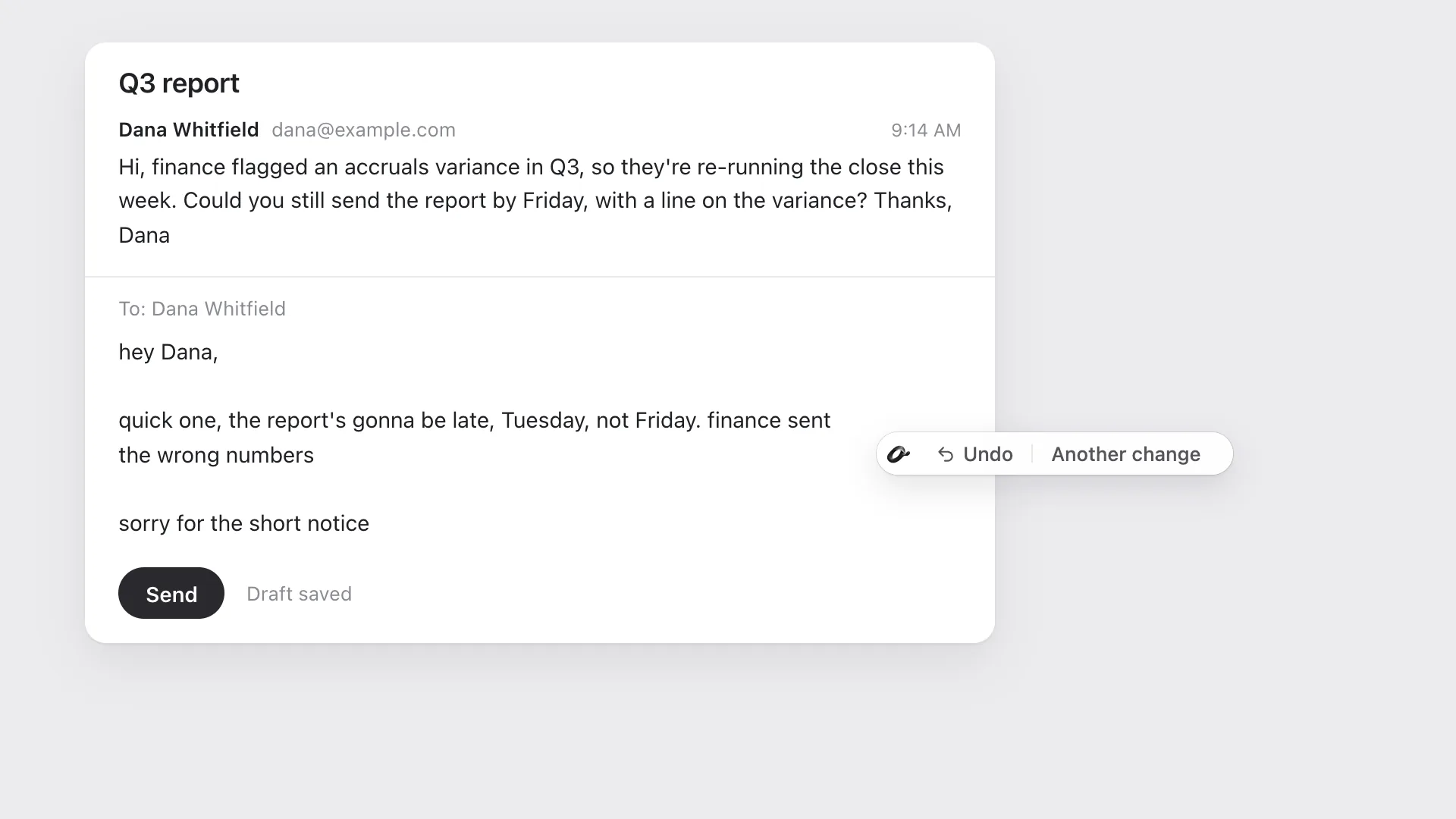
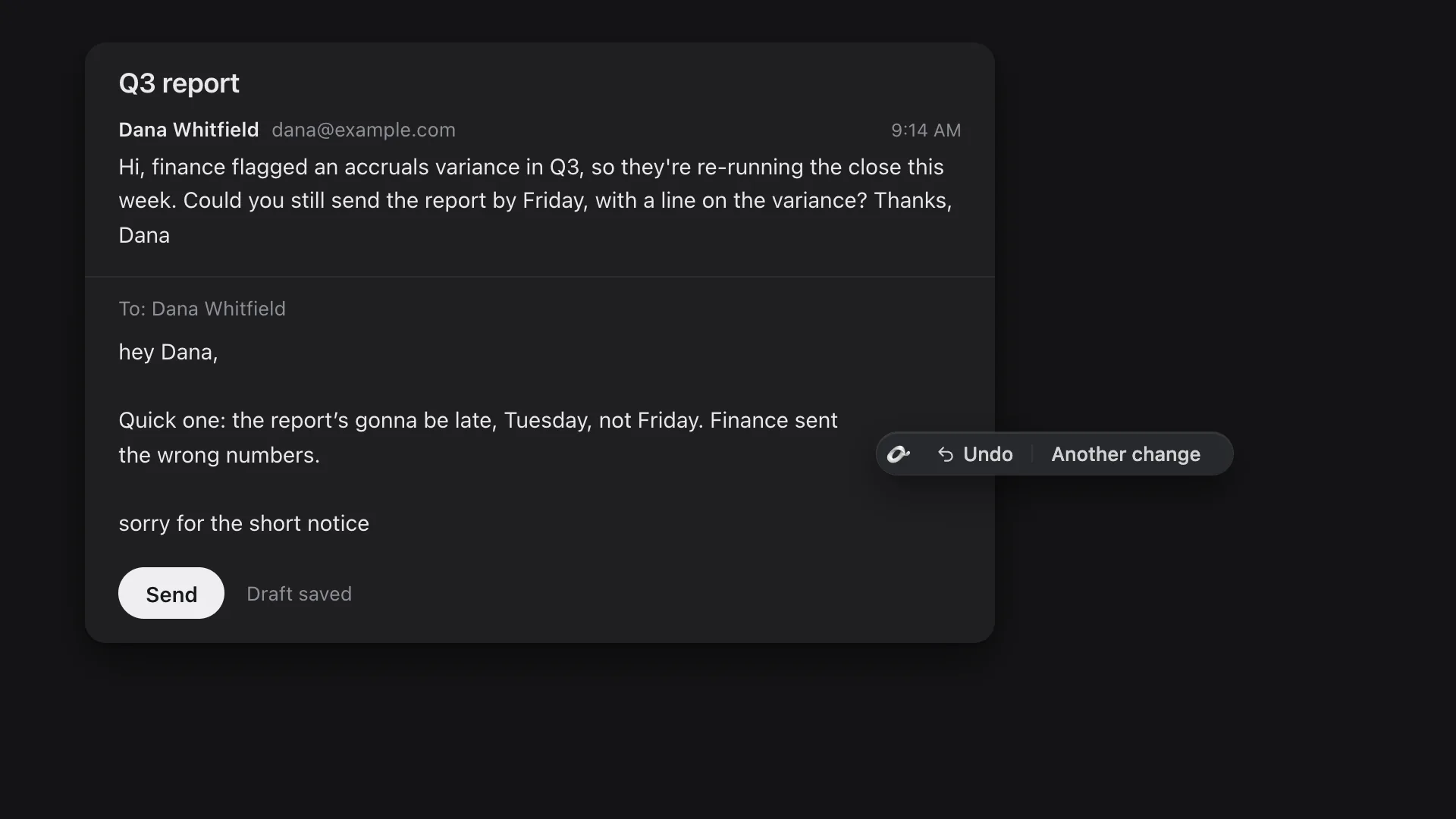
On words you are writing, the mark offers Rewrite, Fix and Change… Fix keeps your words and corrects the grammar and spelling. The words shimmer while Revise works and the mark becomes Stop; then the new words land where the old ones were, with Undo and Another change on the mark for a few seconds.- Change…
Say what should change
Change… opens one line out of the mark: Change it… for the whole box, or Change these words… for a selection, with Rewrite, Fix and Shorter one press away. Type the change in your own words and press Enter. It runs on Quick unless you pick another writer in that line, for that change only.- Write…
In an empty box
Click into an empty box and the mark offers Write… Say what you need and the writing appears in the box word by word. In an email reply the line reads Write a reply to, with the sender's name, and Reads this email takes the thread in; press its × to leave it out. In a Google Doc the mark stands in the margin beside your cursor.- Reading
Explain, Rewrite, Ask…
On words you cannot edit, like an email you were sent or an article, the mark appears after a short pause: Explain answers in a card beside the words, with Ask about this for a follow-up. Rewrite gives you new words to copy. Ask… takes the words to Chrome's side panel as what you are asking about.- Shortcut
Ctrl+Shift+Y (⌘+Shift+Y on a Mac)
In a box or on words you are writing it opens the same line as Change… or Write… On words you are reading it opens Explain, Rewrite and Ask… With nothing focused it opens Revise in Chrome's side panel.- Right-click
The Revise menu
Right-click a selection or a box for Rewrite, Fix, Change… and Write here. Open in chat sends the words to the side panel as a piece of their own, and Open Revise opens the panel.- The side panel
Your chat with Revise
Press the Revise icon in Chrome's toolbar to open it. Ask, or say what to write; Read this page brings the tab you are on into the ask, and + adds what you have saved, a picture or a file. A draft written there can go into the box you were in.- Quiet
When you do not want it here
Choose Quiet on this site from the right-click menu or the Revise icon's menu, and the mark stops appearing on that site. The shortcut and the menu still work there. Turn Revise on here, in the same menus, brings it back.
When a page cannot be edited
Some pages will not let Revise write into them. The line from the mark then holds the new words and says Couldn't write it here. Press Copy and paste them where they go, or Open in chat to keep working on them in the side panel. If the mark does not appear at all on a tab that was open before you installed, refresh that tab once. If it still does not appear.